
|
|
|
|
A NeXTensio form allows you to manipulate data from database tables:
You can add one or multiple records at the same time.
You can modify one or multiple records at the same time.
You can delete one or multiple records at the same time.
Note: the multiple operations can be performed when the form is called by the NeXTensio list.
It is a complement of the NeXTensio list, which calls it to add or edit single or multiple records. The images below present the form server behavior. In order to see the relation with the list browser behavior, please check out NeXTensio List browser behavior.
A NeXTensio form in browser looks similar
to the next one (when the Dreamweaver page
that contains the NeXTensio form was directly
previewed):
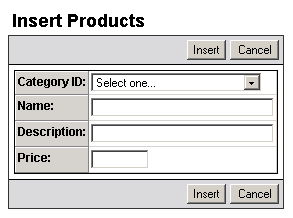
When the Dreamweaver page that contains
a NeXTensio form is called by a NeXTensio
list to allow possible updates or to display the complete information
(like the product description when it is longer than the maximum number
of characters allowed), the form in browser looks like this:
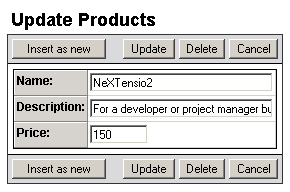
The elements that compose the NeXTensio form are:
The form title -
it changes depending on the action to perform: Insert
or Update. The part that follows
one of these two words (Insert
or Update) is
the generic name of the elements to be inserted or updated. It
is taken from the table name (eliminating the underscore "_"
and what follows after it).

The form header and footer - they contain the buttons that perform the actions. These buttons differ due to the nature of the operation to perform. They are displayed both in the header and footer only if in the Duplicate buttons drop-down menu you selected Yes when creating the form.
For the insert case,
there are two available buttons:
· Insert
- add the form data into the table, as a new record (or as more new records
if multiple insert).
· Cancel
- return to the previous page without performing any action (the previous
page is generally the NeXTensio list that
called the form).
For the update case,
there are four available buttons:
· Insert
as new - the record edited will be left unchanged and the form
data will be saved as a new record.
· Update
- perform the update operation, changing the record's data.
· Delete
- remove the record entirely.
· Cancel
- return to the list without performing any changes to the record.
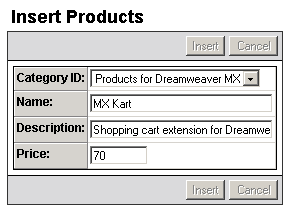
A new feature is that during the insert and update
transactions, the buttons on the form footer (and header) are disabled
(to prevent any disturbance during the operations). So for a fraction
of a second, right after pressing the Insert
button, the form in browser looks like this:
As for the form elements, any standard form element or widget can be used. Also, as you can see in the above example, dynamic data can be incorporated into the form, as drop-down menus or other type of form controls, to make it more user-friendly.
With the NeXTensio form, multiple insert and multiple update operations are possible. They can be executed when the form is called from the NeXTensio list for either the insertion of a certain number of records (using the add new button in the list) or the update a certain number of records already selected.
A page containing a NeXTensio form can be called directly from a user
defined link, and not only from a NeXTensio list. When not called from
the list, without any parameters, the form will perform an Insert operation.
However, if you click on the Cancel button, it will not be able to redirect
to the former page. To obtain the redirect, you must add the KT_back=1
URL parameter to the link calling the form (e.g. from index.php
you want to call form.php to insert a new record.
In order for the form to redirect back to the index.php
when the Cancel button is clicked, the link
must be of the format: form.php?KT_back=1)