
|
|
|
|
Start User Registration Wizard to create the registration page for job applicants (the register_user page). Follow the same steps as for the Company Registration, making sure you check the Use Activation option in the last step, along with the Send welcome e-mail option.
The dialog boxes for each step of the wizard should look like in the following images when completed:
In the second step of the wizard, leave only the
email_usr and password_usr
fields on the page, making sure that the last one is set to be displayed
as a Password field:

This time, you do not have to worry about the active_usr and level_usr fields, as their default values in the table are set for users (accounts are by default inactive and the level is set to 0).
In the third step, you should add a validation
rule for the e-mail field. If you do not have MX
Form Validation installed, this step is not available:

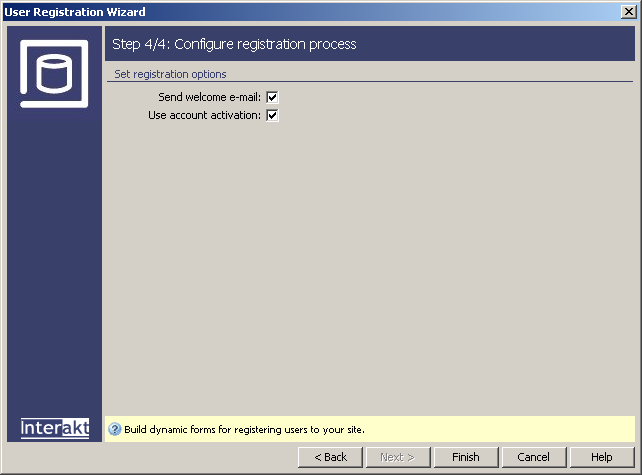
In the fourth and last step of the wizard, you
must decide on other actions to take: sending a welcome e-mail and using
account activation. If you check the Use activation option, a new page
called activate will be automatically created
in the same folder. After a user registers for an account, he will receive
an e-mail message containing a link to the activation page. This is useful,
because it successfully prevents the creation of fake accounts:
Note: if you did not select a table field to store the active
status in the Control Panel's Login
settings area, the Use Activation checkbox
is disabled.
When you're done, click the Finish button. The generated form in the page is no different than the one used for the company registration, but when you login, activation will be mandatory to be able to use the account.
You must use the same mechanism to provide a secure registration process as for the company registration. To see how to do it, read the Secure registration section. You will have to change the values for level and active columns. Instead of 1, as it was shown for the companies, you must use 0.
A new page called activate will be generated in the same folder as the register_usr file. Do not remove this page as it is mandatory in order for the account activation to work.
Note: If you use this server behavior on the ColdFusion server model, a file named Application.cfm will be automatically generated in the site root folder. Do not delete this file, as it contains settings related to session variables used by the server behavior and the current application. If you remove this file or modify it, application pages that use sessions will not function properly.