|
|
|
|
If you have a NeXTensio list in your web application (you can create one by using the Create NeXTensio List Wizard) and you want to customize the number of records added to the database through a multiple insert operation (see NeXTensio List browser behavior to learn more about this), you can accomplish it in just a few minutes.
For starters, let's consider the following NeXTensio
list (in browser):
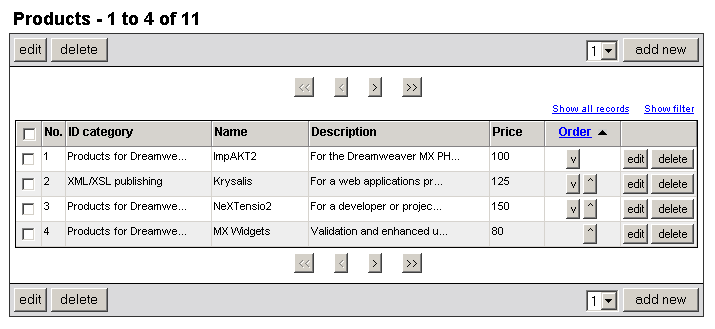
Remember that the add new button and the drop-down menu next to it offer the possibility of inserting multiple records at once. The drop-down menu has 3 default options: 1, 3 and 6. They represent the number of records that you can choose to insert in one operation.
If none of the 3 options suit your needs, you can add another one by customizing the drop-down menu.
More, by replacing the drop-down menu with a text field, you can simply type the number of records you want to insert at once and then hit the add new button.
About editing the options in the drop-down menu, we'll present two ways
through which you can do this. Before getting on with either one, in the
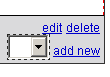
Dreamweaver page, select the drop-down menu
corresponding to the add new button/link:
One way to edit the number of records inserted at once requires the next steps:
Having the drop-down menu selected in Dreamweaver,
click the List Values button in the Property Inspector (in the lower part of the page):
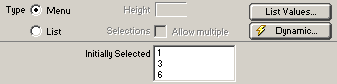
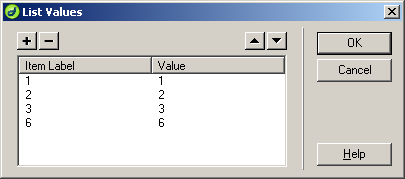
In the dialog box that pops-up, click the + (Plus) button
and type (both in the Item Label and Value columns) the number of records you want
to insert at once. Let's say you choose 2. By using the up and down arrows
in the right-top corner of the interface you can order the available options:
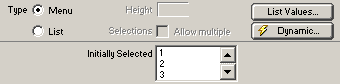
Notice how the Property
Inspector (with the same element selected in Dreamweaver)
looks after customizing that drop-down menu:
Another way to edit the number of records in a multiple insert is accomplished by following the next steps:
With the drop-down menu selected in Dreamweaver,
switch to Code view and you should see the
code corresponding to the default options highlighted:
<select>
<option value="1">1</option>
<option value="3">3</option>
<option value="6">6</option>
</select>
Insert a similar line in there that would generate
a new entry in that drop-down menu, entry that will show your preferences
when inserting multiple records. For example, if you want to insert 2
records at a time, you should add the following code line:
<option value="2">2</option>
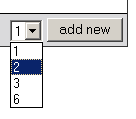
After following either one of the methods presented above, when previewing
the list in browser, you will notice another option in that drop-down
menu:
If you hit the add new button, you will
have the possibility of inserting 2 records at the same time:
If you choose to replace the drop-down menu with a text field, see the instructions below:
In Dreamweaver,
select the drop-down menu near the add new
button/link and check out its name in the Property
Inspector:
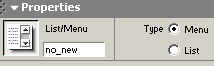
The name of this control is no_new. Write
it down somewhere or simply remember it for less than a minute.
Make sure that drop-down menu is still selected
and then delete it. Without clicking else where, add a text field in the
same place (Insert bar -> Forms
tab -> Text Field icon):
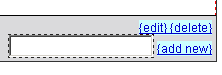
Edit the text field properties in the Property
Inspector:
· Use the
name of the drop-down menu that you just deleted to rename this text field:
no_new.
· Set the
Char Width and Max
Chars to 3.
· Choose
the initial value that you want displayed in the text box. Type in the
Init Val text field 2,
for example:

When previewing the list in browser, you will
notice the text field you just added. It will display the initial value
you previously set. It is an editable field, so you can now type any number
you want, but in between 1 and 20. The maximum value supported by this
feature is 20.
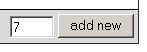
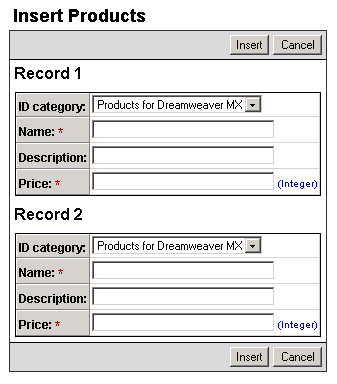
Let's say you type "7" in the text field
and then hit the add new button. If the
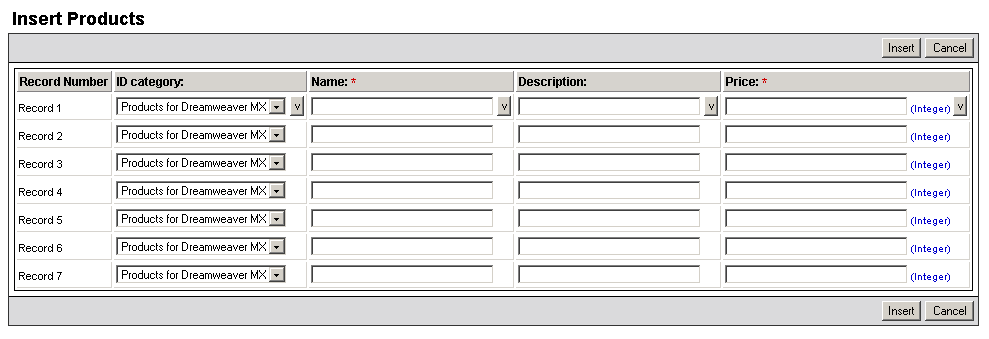
form is set to display records as grid, the multiple insert page in browser
should look like this: