|
|
|
|
In this topic you will enhance the company registration page to prevent the automatic creation of fake accounts. After completing this topic, when a company will register an account it will be required to enter a security code that is displayed in an image. If the codes match, the registration process continues. Otherwise, it will fail.
Before starting work on this enhancement you must have already configured the login settings and created the company registration form at least. You should follow the instructions here and here to learn how to do so.
To implement this functionality, follow the next steps:
Open the register_company page which already contains a form with the e-mail and two password fields.
Place th cursor right after the second password
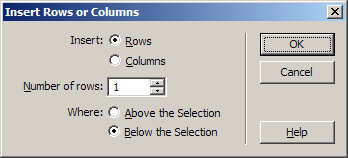
text field and right-click. From the pop-up menu select Table > Insert
Rows or Columns. Select to add a new row below the selection
In the first column enter Security code.
Place the cursor in the second cell and apply the Captcha Wizard from the MX Kollection tab of the Insert bar.
Configure the interface settings as follows:
In the Captcha ID text field enter captcha_security1.
In the Error message
text area enter : You must enter the same code
as displayed on the image to complete the registration.
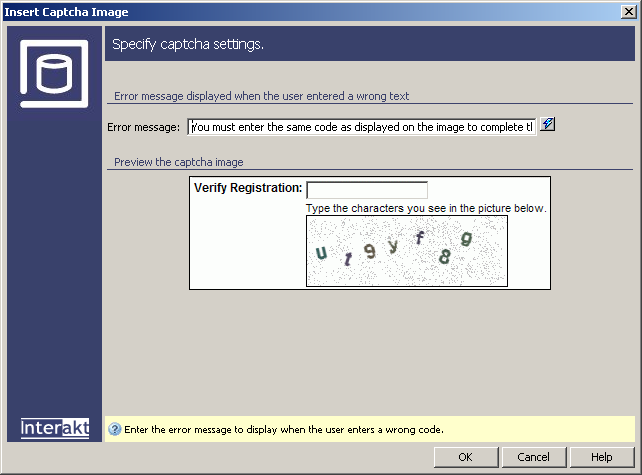
Click OK to apply the changes to the page.
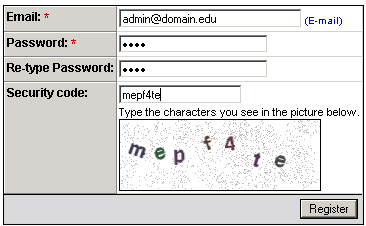
The wizard adds in the second row column a text field and a dynamic image. The image is generated on the server and the user will have to enter the code into the text field.
When a company wants to register an account, it will have to enter the
image code in order to complete the action: