
|
|
|
|
The Check Old Password trigger is used when a user wants to change their password. It can be applied from the Application panel, Server Behaviors -> + -> MX Kollection -> User Login -> Advanced -> Check Old Password. Apply it only if you build the update form manually.
If you use the Update Record Form Wizard and you set the transaction to use the same table as defined in the login settings entry of the Control Panel, and you also set the password column to use a password type field in the form, this trigger will be added automatically.
To use the Check Old Password trigger, create a form first and apply the Update Record Transaction, then check the old password. If the password is OK, then the update proceeds.
The interface should look like the one below:
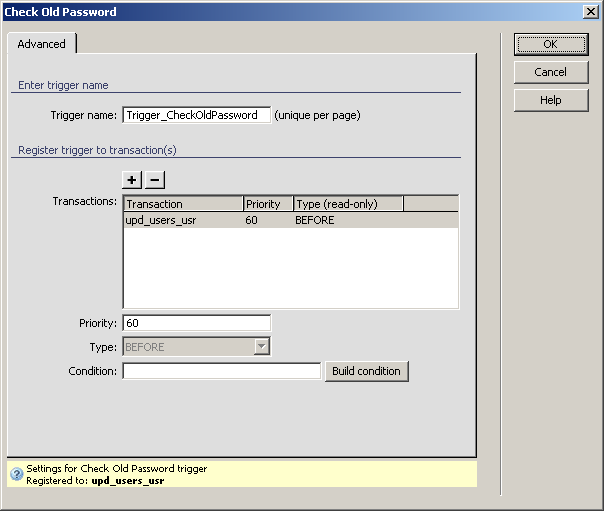
For instructions on completing this dialog box, see the Advanced tab. For the Check Old Password trigger, by default the Priority is set to 60 and the Type is BEFORE, as it should execute before the transaction takes place.
Note: If you use this server behavior
on the ColdFusion server model, a file named
Application.cfm will be automatically generated
in the site root folder. Do not delete this file, as it contains settings
related to session variables used by the server behavior and the current
application. If you remove this file or modify it, application pages that
use sessions will not function properly.