A server behavior is a reusable component for server-side development.
They add blocks of code to your pages for accomplishing specific tasks.
Dreamweaver comes with several default server behaviors and the InterAKT
extensions add many more to this list.
A database refers to data organized and stored on a computer that can
be searched and retrieved by a computer program. Most industrial-strength
and many smaller database applications can be addressed using SQL (Structured
Query
Language).
A query is a SQL command that will extract information from the tables
of a database. Essentially, a query is a request for information from
your database.
A transaction is a group of SQL statements whose effects are logically
connected. Anything from simple queries to inserting, and deleting operations
can be considered a transaction, as well as more complex groups of several
statements which accomplish a specific task.
A session is a way to preserve certain data across subsequent accesses
of the same web application. The session object contains many variables
to store user information on the web server in a location that you choose
in special files. The session support allows you to register arbitrary
numbers of variables to be preserved across requests. Sessions are specific
to individual users. As a result, every user has a separate session and
has access to a separate set of Session variables.
The redirect server behavior loads a new site page after a transaction
is executed. For instance, users could be automatically redirected to
their inbox after they log in to the website.
A trigger is a SQL procedure that performs an action when a transaction
(INSERT, UPDATE, DELETE) occurs. You can use triggers to perform validation
of input data, to automatically generate a value for a newly inserted
row, to read from other tables for cross-referencing purposes, or to support
alerts through e-mail messages.
Update Record Form Wizard
The basic building blocks of an update page can be added in a single
operation using the Update Record Form Wizard.
The wizard adds an HTML form and an Update Transaction server behavior
to your page. The form objects are laid out in a basic table, which you
can customize by using the Dreamweaver page
design tools (make sure all the form objects remain within the form’s
boundaries). To edit the server behavior, display the Server
Behaviors list (Window -> Server Behaviors) and double-click the Update
Transaction serverbehavior.
You can also add the building blocks separately by using the form tools
and the Server Behaviors tab of the Application panel. For more information on building
an update page in multiple steps, see Update Record Transaction.
The Update Record Form Wizard is accessible
from two locations:
The MX Kollection tab
of the Insert bar.
The Application panel,
Server Behaviors -> + -> MX Kollection ->
Forms -> Update Record Form Wizard.
The purpose of this wizard is to build a page that enables users to
update records in a database
table. This wizard is divided into two compulsory steps, based on the
type of data the user has to input. If MX Form
Validation has been installed, an additional step will need to
be completed. This new step consists in defining the validation rules
for all the fields included in the form generated by the wizard.
To build the update page with the Update Record
Form Wizard, follow the next instructions:
Open the page in Design view,
and then apply the Update Record Form Wizard.
A dialog box appears.
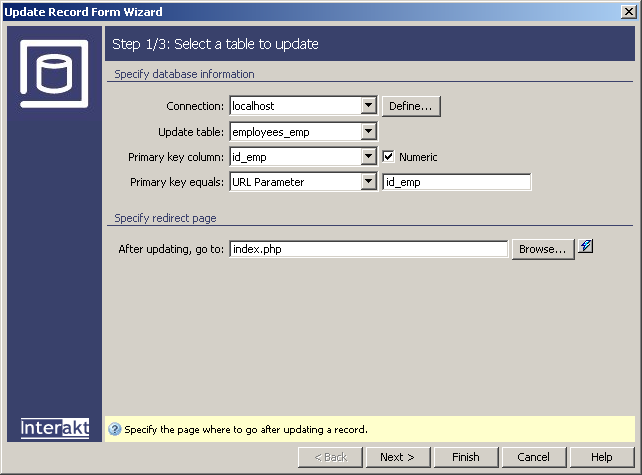
The first step into completing the dialog box requires the user to input
basic information about the transaction,
like the table to be updated and the page to which it will be redirected:
To set the dialog box options, follow the next steps:
In the Connection drop-down
menu select the database connection defined for your site; if you don't
have a connection yet, you can use the Define
button and create one now.
In the Update table
drop-down menu select the database table into which you want to update
records.
In the Primary key column
drop-down menu specify the primary key column for the current table. The
content of this drop-down menu is refreshed each time the user changes
the table for the update operation. By default, the first element is selected.
The Numeric checkbox
specifies whether the selected Primary key column
has a numeric type (integer, double, etc). The state for this checkbox
is altered each time the user changes the selected value of the Primary key column according to the meta-data retrieved
by Dreamweaver for the specified table column.
In the Primary key equals
drop-down menu select the way the record ID is passed to the update page
(either URL Parameter, Form Variable, Cookie, Session
Variable, Server Variable, Entered Value), and type its name in the associated
text-box.
In the After updating, go to
text box enter the page to be opened after the record is updated or click
the Browse button to select the file page.
The five buttons in the lower part of the interface
offer you the next functionalities:
· With the
< Back / Next
> buttons you can navigate through the wizard's steps.
· Click Finish when you are done configuring the wizard.
· Click Cancel to exit without the new settings to be
applied.
· The Help button brings you to this help page.
These buttons appear on all three interfaces of the Update
Record Form Wizard.
Click Next to continue
with configuring the wizard.
Fields information
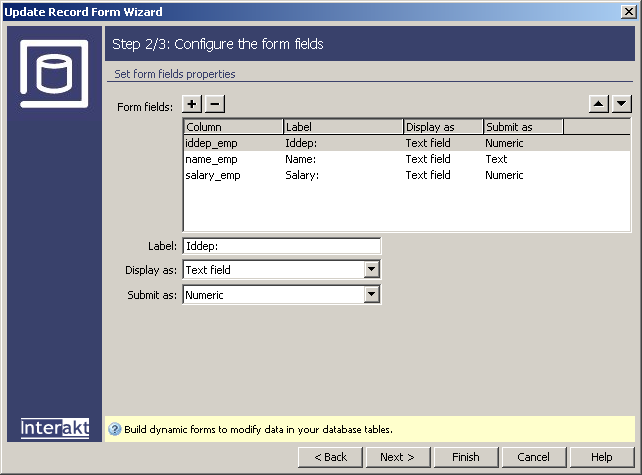
This dialog box allows you to define exactly which fields get which
data and where they get it from. This is where you will determine how
an input for a specific field will be displayed as:
To set the dialog box options, follow the next steps:
In the Form fields area
specify the form objects you want to include on the HTML
form of the update page, and which columns in your database table
each form object should update.
By default, ImpAKT3 creates a form object
for each column in the database table. If your database automatically
generates primary key ID's for each new record created, remove the form
object corresponding to the primary key column by selecting it in the
list and clicking the Minus (-)
button. This eliminates the risk of the user changing the ID value.
Use the Plus (+)
button to add form fields to the current transaction.
You can also change the order of the form objects on the HTML
form by selecting a form object in the list and clicking the up
and down arrows on the right top side of the dialog box.
Specify how each
data-entry field should be displayed on the HTML
form by selecting a row (single click) in the Form
fields area and entering the required information in the boxes
below the grid.
In the Label text box
enter a descriptive label to display beside the data-entry field. By default,
the column’s 'generic name' is displayed (MX Kollection
3 removes the part in the column name that starts with "_"
and capitalizes the first part).
In the Display as drop-down
menu select a form object to serve as the data-entry field for the current
selection in the grid. You can choose from the following list: Text field,
Text area, Menu, Hidden Field, Check box, Radio group, Password field,
Text, File field. To read the detailed description for each of these options,
click here.
Set the form object’s properties. You have different options depending
on how you want the form field to be displayed as.
You can use the Back
button to alter the table and redirect
information. If you do not wish to validate the user input, you can click
on Finish to add the Update
Record Form Wizard elements to the page. If you want to go to the
third and last step of the wizard, click Next.
Form validation rules
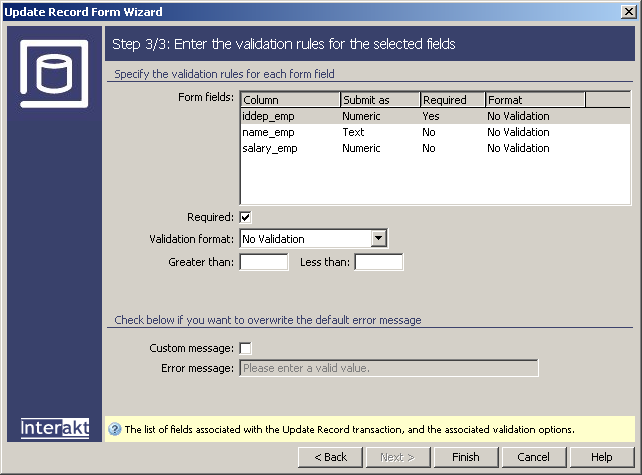
This last step of the wizard configures the validation rules for each
of the form input fields. You can define a rule for each form element,
so that bad input will be avoided:
Remember that this step appears only if you have the whole MX
Kollection 3 package installed, or even only MX
Form Validation. In this case, an Validate Formtrigger,
with a validation role, will be added to your page.
Note: If in the first step of the wizard
you have selected the user table that is also set in the Login
Settings section of the Control
Panel, and you've also set the password column to be displayed as
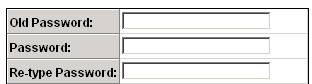
a password field, the following will happen:
Three different text fields will be generated
for the password column: old password, password and re-type password.
Two additional server behaviors will be added
to the page:
· The
Check old Password server behavior.
· A throw
error trigger, that verifies if the old password and the re-type password
fields match:
If all of the password checks are successful, the update transaction
is completed.