
|
|
|
|
In order for a user to be recognized by your site, they have to login using their username and password. All settings for the login process are configured through the login settings entry of the Control Panel: how to login users, what database table stores the user details, user levels and redirects.
You must provide a way for the users to enter the data that will allow the site to recognize them. This is done via a login form generated automatically by the Login Form Wizard.
The Login Form Wizard is accessible from two locations:
Once you've accessed the wizard, its user interface will be displayed at the first step. The dialog box is identical to the one from the first step in the User Registration Wizard. Read there about its configuration.
To set the dialog box options for the second step of the wizard, follow
the instructions below:
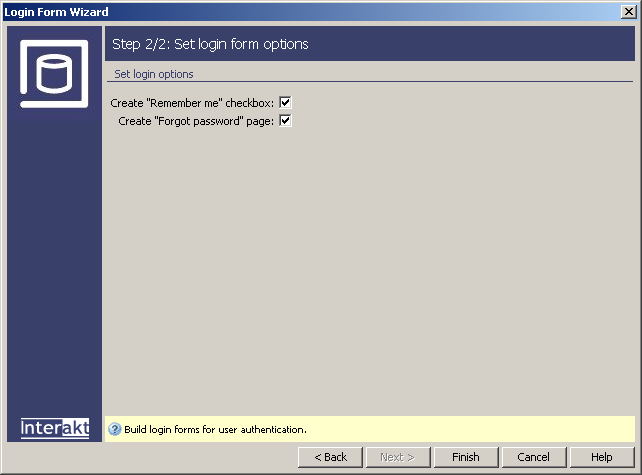
If Use "Remember me" checkbox is checked, the wizard will generate a "Remember me" option in the form, allowing the user to be automatically logged in.
If Create "Forgot password" page is checked, the wizard will generate a page in Dreamweaver named forgot_password. This page contains a form, a Send E-mail trigger, an Update Transaction.
Click Finish when you are done configuring the wizard.
Once the wizard is completed, it will add an HTML form and a login server behavior.
Note: If you use this server behavior
on the ColdFusion server model, a file named
Application.cfm will be automatically generated
in the site root folder. Do not delete this file, as it contains settings
related to session variables used by the server behavior and the current
application. If you remove this file or modify it, application pages that
use sessions will not function properly.