
|
|
|
|
Open the login page in the site root and use the Login Form Wizard (from the Insert panel -> MX Kollection) to create a single login page for both companies and users.
The first step's purpose is only to inform you about your settings.
Go to the second step:
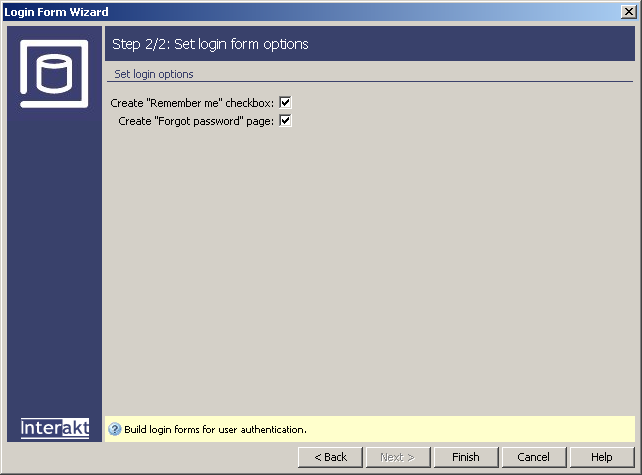
By checking the Create Remember me checkbox, this feature will be added to your form ad thus allow storing the user login information in a cookie for 30 days (as configured in the Login Settings interface).
The Create forgot password page checkbox will automatically generate a link next to the login form, as well as the actual page that receives the user's e-mail address and sends a new password to it (if using encryption, or the old password if not).
A new page called forgot_password will be generated in the same folder as the login page. This is used by the login page in order to retrieve lost passwords, by asking for the e-mail address and sending the old password (if not using encryption) or a new one (if using encryption, a new password is generated) if the address exists in the user table.
Note: If you use this server behavior on the ColdFusion server model, a file named Application.cfm will be automatically generated in the site root folder. Do not delete this file, as it contains settings related to session variables used by the server behavior and the current application. If you remove this file or modify it, application pages that use sessions will not function properly.
In Design View, the page will look as
follows:

Save the page and test it in the browser by logging in with the company account you've created earlier.