
|
|
|
|
In order to create a page for browsing through thumbnails, follow the next steps:
Open the thumb_view page.
Create an unsorted recordset with all the records from the images_img table. The two previous tutorial topics (List images and show thumbnails and Delete Image) demonstrate how to create a recordset. You will use this recordset to extract the filename of the thumbnails, when applying the Show Thumbnail server behavior at the next step.
Apply a Show Thumbnail server behavior on this page as you did in Step 7 of the List images and show thumbnails page.
Now, we will create the image gallery by applying
the Looper Wizard feature of MX
Looper. This feature will loop through the images in the database
and place thumbnails on the screen (MX Looper
required).
· Select
the Show Thumbnail icon. Then go to Insert panel -> MX Kollection
-> Looper Wizard (seen below):

· The following
interface will appear. Specify the table dimensions of your choice, then
click OK.
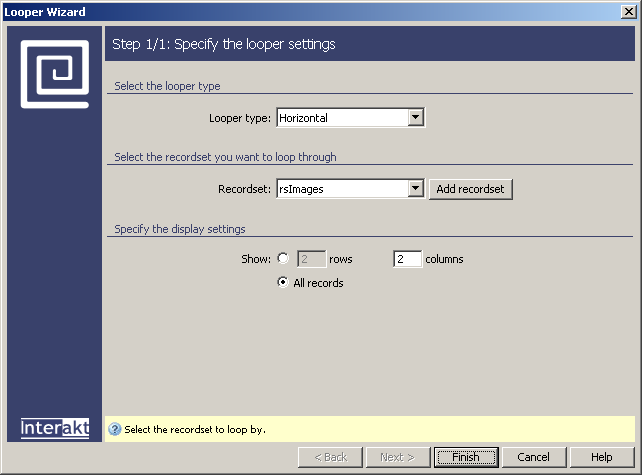
· After inserting
the looper, you should see the following icon on your Dreamweaver
page:

Link the thumbnail image to a separate page where
the full image will be shown:
· First,
select the Show Thumbnail icon in your Dreamweaver page and right click on it. In the
menu that appears, select the Make Link option.
· Follow
the procedure described in the Delete
image page. You will need to add an URL parameter with the id_img
field and link to the full_view page.