
|
|
|
|
Before proceeding with this topic and deleting images from your gallery, one thing must be acknowledged: images are both stored on the server and recorded in the database. They also need to be physically removed from the server. This can be done by using a Delete File server behavior.
Rather than automatically deleting the image, you will set up a safety net where users must confirm the deletion. You will also display a preview of the image before deleting it.
Follow the next steps to build the page that deletes photos:
Open the \admin\list_img file.
Add an extra column to the dynamic table by selecting
the whole table and incrementing the Cols
field in the Properties panel.
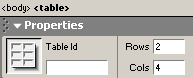
This column will contain a link to the page for deleting photos (delete_img).
In the extra column, on the same row as the
dynamic data write the word "Delete".
Then, select the "Delete"
text and right-click to reach the menu seen below. Select the Make
Link option:

An interface will appear to help you create the
link. Since the delete page will need to know
which image to delete, you should add an URL parameter with the image
ID (stored in the id_img primary
key
field). Click the Parameters button in the
lower right side of the interface:

When the Parameters
window opens, type id_img in the Name field. For the Value
field, click in the empty space and select the dynamic lightning bolt
on the right:

After clicking the lightning bolt, the Dynamic Data
window appears. Here, just double-click on id_img
and the Value field (from the previous window)
will be populated.

With the Dynamic Data
window now closed, click OK in the Parameters window, and you'll be back in the Make Link Interface. All that's left is choosing
the page to link to. Select the delete_img page
from the admin folder.

The next set of steps take place in the delete_img page from the admin folder. The goal here is to create a confirmation page to prevent accidental deletions.
Open the \admin\delete_img page. Type the message "Are you sure you want to delete this image?".
You need to display the details of the image: a thumbnail preview, the filename, and the description from the database. In order to do so, create a recordset from the image_img database table, filtered by the id_img URL parameter.
As you remember from the previous
topic, a recordset can be created from the Bindings
tab in the Application panel. Configure
the recordset as shown below. The Filter
field selects only the image to be deleted by comparing its ID value with
the one received through the URL parameter from the list_img
page.


Below the confirmation dialog, add a form by selecting
Insert panel ->
Forms -> Form (as shown below):

Next, add a button to the form, also from the
Forms tab:

Select the button on the page, and go to the Property Inspector. Change the Button
name to confirm and its
Label to Yes.

Repeat step 7 and create another button called cancel, and labeled No in the same form.
Now you should make the No
button link back to the image list page (list_img).
First select the No button. Depending
on your Dreamweaver version, the Go
To URL feature will be in one of two places:
· For Dreamweaver MX 2004 users - open the Tag
Inspector panel, the Behaviors tab,
and select Go To URL.

· For Dreamweaver MX 6.1 users - open the Design
panel, the Behaviors tab, and select
Go To URL.

· In the
interface that appears, select list_img as seen
here:

Now you can use the Delete
Record Transaction
feature of MX Kollection 3. Go to the Insert bar -> MX Kollection
tab, and click the Delete Record Transaction
icon (shown below).

Configure the Delete Record Transaction window. Notice that most of the fields are already correctly filled in: Connection, Delete from table, Primary key column and Primary key equals.
If left like this, the delete operation would
occur immediately when the page loads, making the safety net completely
useless. There is however one dialog box option to define a start condition:
the First check variable field. To start
the delete action only after pressing the Yes
button, select in the First check variable drop-down
menu the Form variable option. Type in the
associated dialog box the name of the Yes
button: confirm.

Since all other fields are already set up, click the OK button to add the server behavior to the page.
The Delete Record Transaction removed the image from the database. However, you also need to remove the actual file from the server. In order to do that, you need to apply the Delete File server behavior to your page (Server Behaviors panel -> MX Kollection -> File Upload -> Delete File).
Configure the Delete File
server behavior as follows:

Notice that the field storing the image name (filename_img)
and the folder are already selected in the Table
column drop-down menu and File folder
text field.
Click OK when done.
You can now test the delete_img page in your
browser. The page should look something like this:

Note: If you delete an image from your gallery, the delete_img page will remove the corresponding record from the database, and will remove the actual file and all generated thumbnails from the server.
You have now completed the administrative section of your image gallery. You can upload, view and delete images. In the next topic, you will start learning how to display images in the site front-end.