
|
|
|
|
The Server-Side Includes From List server behavior allows the site developer to include files in the current Dreamweaver page, files that are individually specified in a list. Besides the filename, some additional information is necessary (and manually specified):
the values for the URL parameter passed, and corresponding to each value - the file to be included.
the title of the page in browser when a certain included file is loaded (the title is displayed on the bar).
the meta keywords that characterize the content of the respective included file.
the meta description of the file.
Note: Read more about meta keywords and meta description and see an example here.
This server behavior is accessible from the Application
panel, Server Behaviors -> + -> MX Kollection
-> Server-Side Includes -> Server-Side
Includes From List.
The user interface has two tabs:
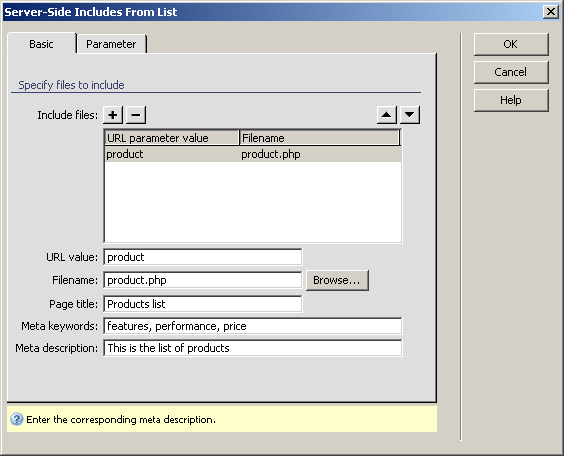
To set the dialog box options for the first tab, follow the next steps:
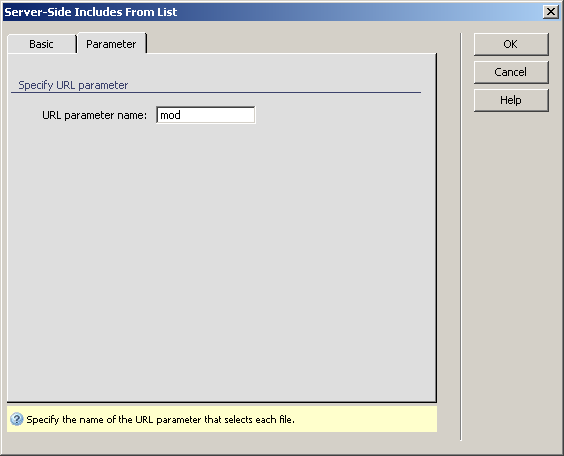
To set the dialog box options for the second tab, follow the next steps:
In the URL parameter name text box enter the name of the URL parameter that you are going to use in your site pages. The default name given is mod.
Click OK when you are done configuring the server behavior.
Before being able to see this server behavior at work, there are several things that need to be done in your current Dreamweaver page (let's consider this page being named includes.php):
Create a link in page that would point to the page itself (simply write down a word/text, select it, right-click on it, and Make Link).
Make sure the link passes the URL parameter specified
in the Advanced tab (mod), with the value
specified in the Basic tab (product). When
clicking on this created link in the Dreamweaver
page, the Property Inspector should look
like this:

In browser, when clicking on this link, the included file (product.php) will be loaded in your current page.
Note: If you applied the Server-Side Includes From List server behavior in your page, you cannot apply it again in the same page, and you cannot apply Server-Side Includes From Table either.
"Friendly" URL's can increase your site's ranking on various search engines. With the new MX Includes, you can customize the URL's displayed in the address bar of your site, transforming them into "friendly" URL's. For example, with the configuration above, when the product.php file is loaded, the URL is:
http://your_server/your_folder_hierarchy/your_site/includes.php?mod=product.
However, this URL will receive a poor ranking on search engines such as Google, because the address contains parameters. Instead, you could turn the above URL into something easier to read:
http://your_server/your_folder_hierarchy/your_site/includes.php/product
With the new MX Includes (only on Apache), URL's for the included files can be rewritten to become Google friendly.
Note: In order to use friendly URL's, PHP must be compiled as an Apache module. When PHP runs as CGI, friendly URL's cannot be used.
If you want to turn it into a 'nicer' URL, follow the next steps:
In the Basic tab,
add a slash (/) before the URL value (product) in the corresponding interface
field:
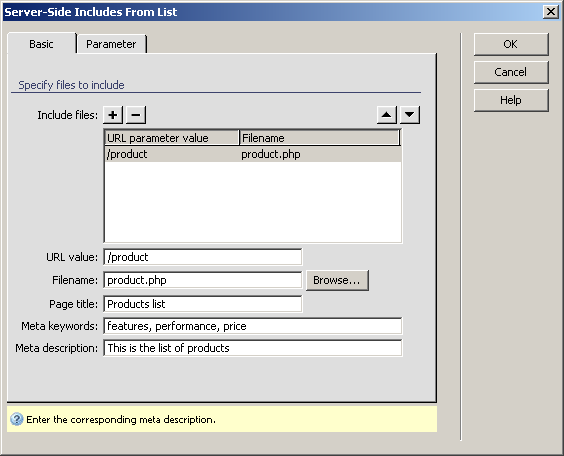
In the Advanced tab,
delete the name of the URL parameter, leaving the text box blank:
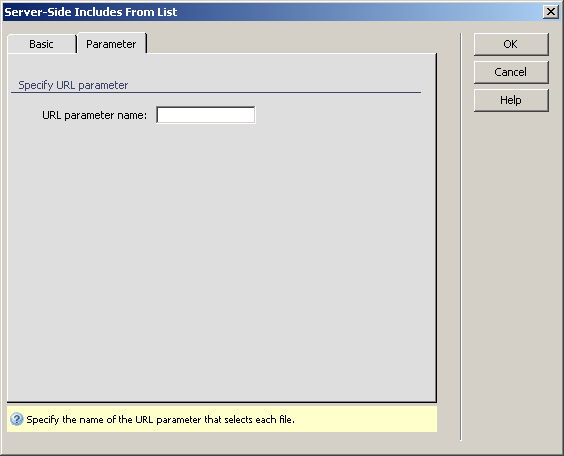
Select the link that when clicked, uploads the
included file, and in the Property Inspector,
replace the "?mod=" with a slash (/):

If you preview the page in browser and click on
the link, you will notice the nice URL being displayed in the address
bar:
http://your_server/your_folder_hierarchy/your_site/includes.php/product