
The first thing an application must have is a way to let visitors access content. In this particular case, content is represented by articles that have been submitted, reviewed and approved, organized by topics. The simplest way to let visitors pick what to read is to present them with a navigation menu made up of the existing topics.
To create the dynamic menu you need to:
The steps you must take in order to retrieve all topics information from the database are:
Open the menu page in Dreamweaver.
Go to the Bindings tab > Plus (+) > Recordset (Query).
Configure the Recordset
interface as shown below:
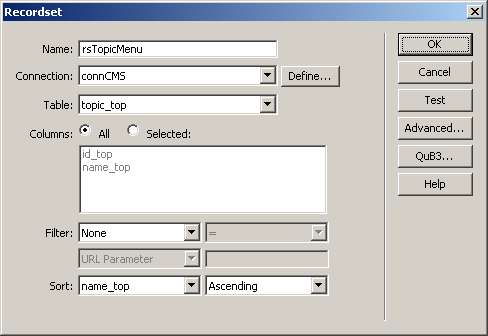
In the Name text box enter the new recordset's name: rsTopicMenu.
In the Connection drop-down select the Dreamweaver database connection created earlier: connCMS.
In the Table drop-down menu select the topic_top table.
In the Sort drop-down menu select the column to order records by: name_top. Set the method to Ascending.
When done setting the options, click OK to close the user interface and create the recordset.
After retrieving information from the database, you must put it to use. More specifically, the topic names will be displayed, and the ID's used as link parameters:
After having created the topic recordset, its
fields are displayed in the Bindings tab:
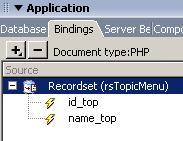
You can drag & drop fields from the recordset
onto the page. To display the dynamic topic title, drag the name_top
field from the Bindings tab on the page. A representation
of the field will be displayed:
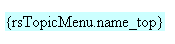
At this point, the first value from the recordset
is displayed on the page. To get it to show all others you must use a
repeat region (this is a Dreamweaver server
behavior that loops through recordset entries). In order to format the
output right (each title on its own line), place the cursor after the
dynamic text and hit Shift+Enter.
Then press Ctrl+A to select the entire page
content and go to the Application tab of the
Insert bar. Click on the Repeated
Region icon to open its interface:
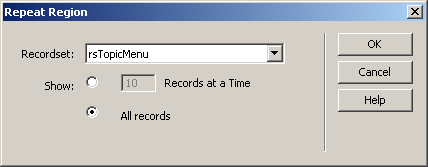
In the Recordset drop-down menu select the rsTopicMenu recordset created earlier.
In the Show radio group select the All records radio button.
Click OK when done setting the options to apply the changes and close the user interface.

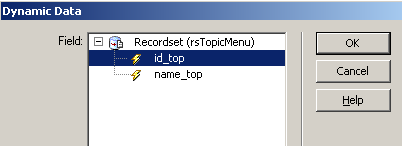
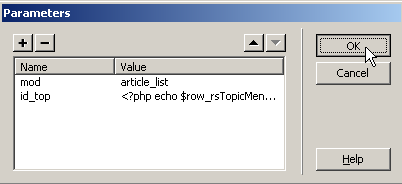
To allow visitors to quickly change the topic, the menu will be displayed next to all other content. To achieve this, you must include it into the main page layout, in the reserved layout spot - on the left:
Open the index page in Dreamweaver.
Select the default text - Content for id "navbar" Goes Here and delete it.
With the mouse cursor inside the <div>, go to the Server Behaviors tab > Plus (+) > MX Kollection > Server Side Includes and select the Server-Side Include option.
The dialog box that is displayed only contains
one field that allows selecting the file to include. Click on the Browse button and select the menu
page from the site root.
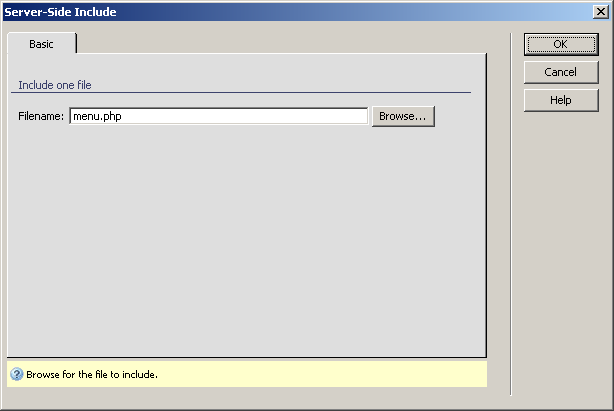
Click OK when done setting up the options.
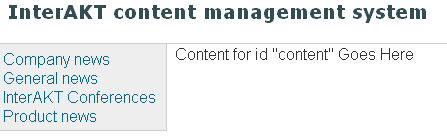
Now save the page and press F12
to preview it . The topic list will be displayed in the correct place:
Next you have to build the page that retrieves and displays the list of articles from the selected topic, to work with the menu.