
|
|
|
|
In this 'how to' tutorial you will learn how to add file upload capabilities to a NeXTensio form (which works with multiple insert operations too), without saving the file name in the database.
The application that will be created allows listing all employees in a company. In the list, aside name and salary, a thumbnail of their photo is displayed. The photos are saved using a rename rule instead of saving the filenames in the database.
The list and form are implemented using NeXTensio, and as such you need to have it installed in order to follow this tutorial.
The database structure used in this tutorial is rather simple, using
only one table, with the structure shown below:
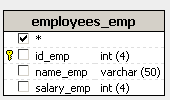
Note: The database diagram in the image above was built with MX Query Builder (also referred as QuB) to better illustrate the database structure. You do not need to build it in order to complete this 'how to' tutorial.
Only the employee name and salary are stored in the database. To create a similar database structure, you can use the sql or mdb scripts provided in the package, in the \tutorials\_HOW_TO\File upload without saving to db\db\ folder. Use the script required by your database software.
For this tutorial you will need two files:
index - this will display the employee list. Create it yourself in your site folder.
form - this file is automatically generated by the Create NeXTensio List Wizard, and this is where the NeXTensio form will be created.
Besides these files, a folder named photos should exist in your site root. If using the database script provided, you should also unpack the photos folder from \tutorials\_HOW_TO\File upload without saving to db\, as it contains the corresponding photos for each database entry.
Before starting work on the application, you must define a Dreamweaver
database connection, and make it access the database containing the table
mentioned above.
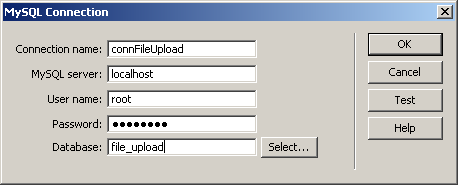
After the site is correctly configured, and you have defined a database connection, you can move on and create the employee list.