|
|
|
|
Since most applications and actions these days are meant to protect us from intrusion, people use passwords in a rather intense way: a password for the car stereo, a PIN code for the cell phone, one for the house alarm, one or more for the e-mail accounts, not to mention the operating system password.
Given that, forgetting a site password is no longer outrageous, but simply normal. And in order to avoid having the user register once more, the easiest way is to provide a way for him to retrieve the lost password. If the passwords are kept in encrypted form however, retrieval is not possible, and as such, a new password should be generated and sent to the user's e-mail address.
If you checked the Create forgot password page checkbox during the Login Form Wizard step, then the page was already created for you. If you forgot to check the box, then you can create the page manually. To do so, read below.
Adding a forgot password page to your application only requires two steps:
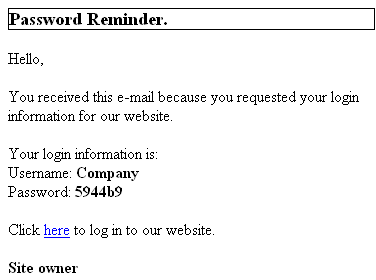
Now, if the user does not remember his password (for the site account), he can click on the I forgot my password link in the login page, and after entering the e-mail address in the respective text field, an e-mail message containing the old password (or a newly generated one) is dispatched.
Note: If you use this server behavior on the ColdFusion server model, a file named Application.cfm will be automatically generated in the site root folder. Do not delete this file, as it contains settings related to session variables used by the server behavior and the current application. If you remove this file or modify it, application pages that use sessions will not function properly.
The user will receive an e-mail message like the one below: