
|
|
|
|
Since you already defined and configured the access levels from the InterAKT Control Panel -> Login Settings, and the files that need to be protected from outside interference are grouped in folders, you can use the Restrict Access to Folder command to accomplish this task.
You can access the command from the MX Kollection tab of the Insert panel. Configure the dialog box that opens as follows:
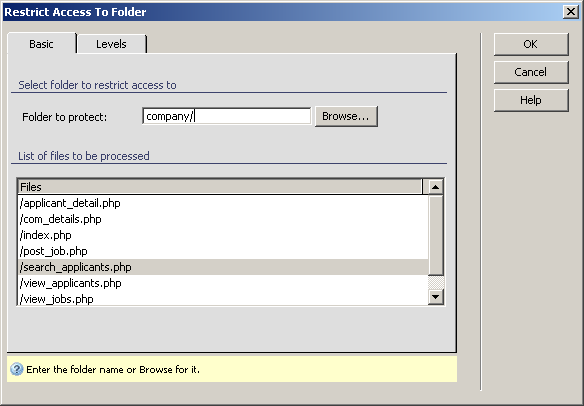
In the Basic tab, use the Browse button to select the folder to protect. Select the company folder first.
The files to be protected are displayed in the
list below the folder name. Only files matching the extension used by
the current server model are taken into consideration.
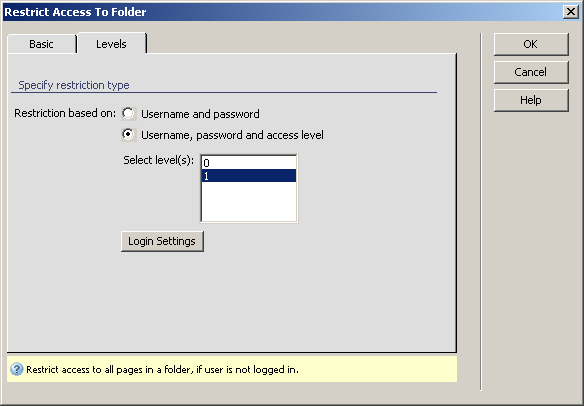
In the Levels tab,
you can decide what kind of protection to use. You must select to restrict
access based on Username, Password and access level,
and set the level to 1 (for companies).
When you click the OK button, the command will open each file in the selected folder, and add the code to restrict access to page.
The code on each page will check when the page loads if the visitor has sufficient rights to view the page, and if not, the default redirects as configured in Control Panel take effect.
The values used for level must be identical to the ones used in the database.
You must repeat the steps above for the user folder as well; remember to set the level used for protection to 0.
After protecting the entire folders, you must however remove protection from some pages: the register and activate pages from the company and user folders.
Note: If you use this server behavior on the ColdFusion server model, a file named Application.cfm will be automatically generated in the site root folder. Do not delete this file, as it contains settings related to session variables used by the server behavior and the current application. If you remove this file or modify it, application pages that use sessions will not function properly.