
|
|
|
|
Before you start building the image gallery, please make sure that:
You have a running database server and web server.
You have installed the following extensions for
completing this tutorial:
· MX
File Upload
· MX
Looper
· MX
Includes
· MX
Form Validation (optional)
· MX
User Login (optional)
You have a correctly defined Dreamweaver site.
You need to set up the database provided with this tutorial and create a connection to it.
For more instructions about setting up your site, consult the Getting Started help file that comes with MX Kollection 3. It can be accessed in Dreamweaver from Help -> InterAKT -> Getting Started.
The image gallery will store information in a database having two tables
with the following structure:
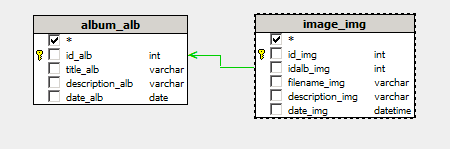
Note: The database diagram in the image above was built with MX Query Builder (also referred as QuB) to better illustrate the database structure. You do not need to build it in order to complete this tutorial.
Here are the database tables and their columns:
album_alb - stores all
albums and some simple information about them.
· id_alb
- the primary key for the album table. No two albums can have the same
ID.
· title_alb
- the album's title (Florida 2004).
· description_alb
- a text description of the album.
· date_alb
- the date associated with the album.
image_img - stores the
filename of the image, a short description of each image, and the date
when it was uploaded. It also points to the album the image belongs to
through the foreign keyidalb_img.
· id_img
- the primary key
for the image table. There will not be two images with the same ID.
· idalb_img
- the foreign key that connects to the associated album.
· filename_img
- the image filename.
· description_img
- a brief text description of the image.
· date_img
- the date associated with the image.
The actual images are not stored in the database, but uploaded to the server. They can later be retrieved by their filename, which is stored in the database.
To set up your application, follow these steps:
You can find the scripts needed to create an identical table structure inside the downloaded package, in the \tutorials\Image Gallery\db\ folder, as an sql or mdb file, depending on the database server you intend to use. Execute the sql script in your database server management software (e.g. PHPMyAdmin, Microsoft Access etc.).
Open Dreamweaver
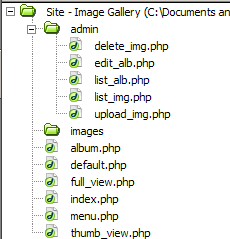
and create the following folder and file structure for your site. You
can create it easily by unpacking the zip file
corresponding to your server model
from \tutorials\Image Gallery\ in your site
root folder:
Open the index page
and create a new connection named connGallery
and configure it to connect to your newly created database.

Starting with the next topic you will learn how to upload, list and delete images.