
|
|
|
|
This entry in the InterAKT Control Panel
offers the possibility of selecting your favorite server behaviors (the
ones you use the most in your site) and grouping them in a list for quicker
access at later times. This list can be displayed by clicking on its corresponding
icon in the Insert bar, MX
Kollection tab:

The process of selecting your favorite server behaviors takes a very short period of time and it only requires a few mouse clicks from you.
Here is how the interface looks like:

In the Categories column on the left of the interface, a dynamic list of tree menus is displayed.
This list is retrieved in concordance with
the InterAKT entries from the Server
Behaviors tab of the Application
panel, in Dreamweaver. By InterAKT
entries we do not mean the entries named "InterAKT", but all
the ones that were added when you installed our products (e.g. the MX
Kollection entry, the InterAKT entry):
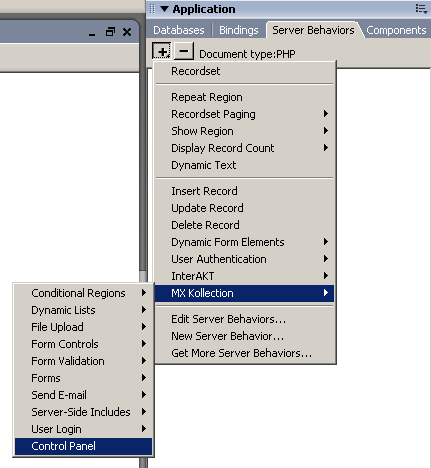
These tree menus can have one or more levels depending on the levels of the menu options in the InterAKT entries. When clicking on the '+' icon of a tree menu, the options that expand are the exact ones from the menu in the Server Behaviors tab.
All the available server behaviors (according to the InterAKT products installed on your computer) are grouped in categories.
When clicking on a server behaviors category, its name will be displayed in bold on the right part of the interface.
Below the category name, all the server behaviors included in that category will be listed.
Beside each server behavior (from that category or sub-category, depending on the tree menu level), a checkbox is displayed. By checking it, the respective server behavior is included in you list of favorite and most often used server behaviors.
The five buttons on the right of the interface offer you the next functionalities:
Click OK when you are done configuring the dialog box.
Click Cancel to exit without changing your Favorites list.
The Help button takes you to this help page.
The Export button
allows you to save (export) the file that contains the favorites list.
When clicking Export, the following dialog
box will be displayed first:

The backup name is by default the current date, but you can specify
any name you want. Then another window is displaced, and there you can
choose where to save the backup list containing your favorite server behaviors.
The default folder is your site root, but you can save it anywhere.
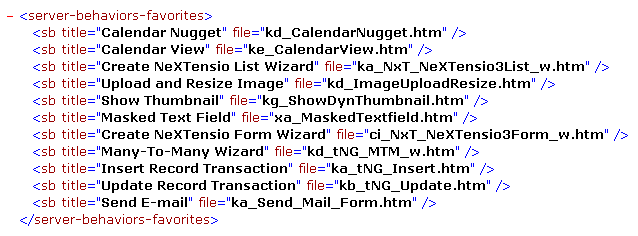
The file format is XML (MXKF-2005-07-29.xml)
and if you open it with Internet Explorer, it will look like this:
The Import button allows you to import an .xml file that includes a favorite server behaviors list (previously saved and then replaced). In the window that opens, select the folder and the respective .xml file, click OK and there you have a new favorite server behaviors list.
Afterwards, when displaying the list from the
Insert bar, those server behaviors will
be listed:
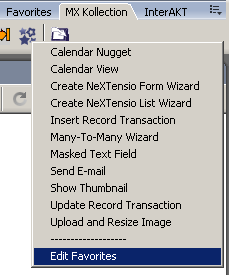
If you click the Edit Favorites option in the menu above, the MX Kollection Favorite Server Behaviors window will open and you can edit your list.